Best USB-C Hubs for Office Laptops: A Practical Desk Setup Guide
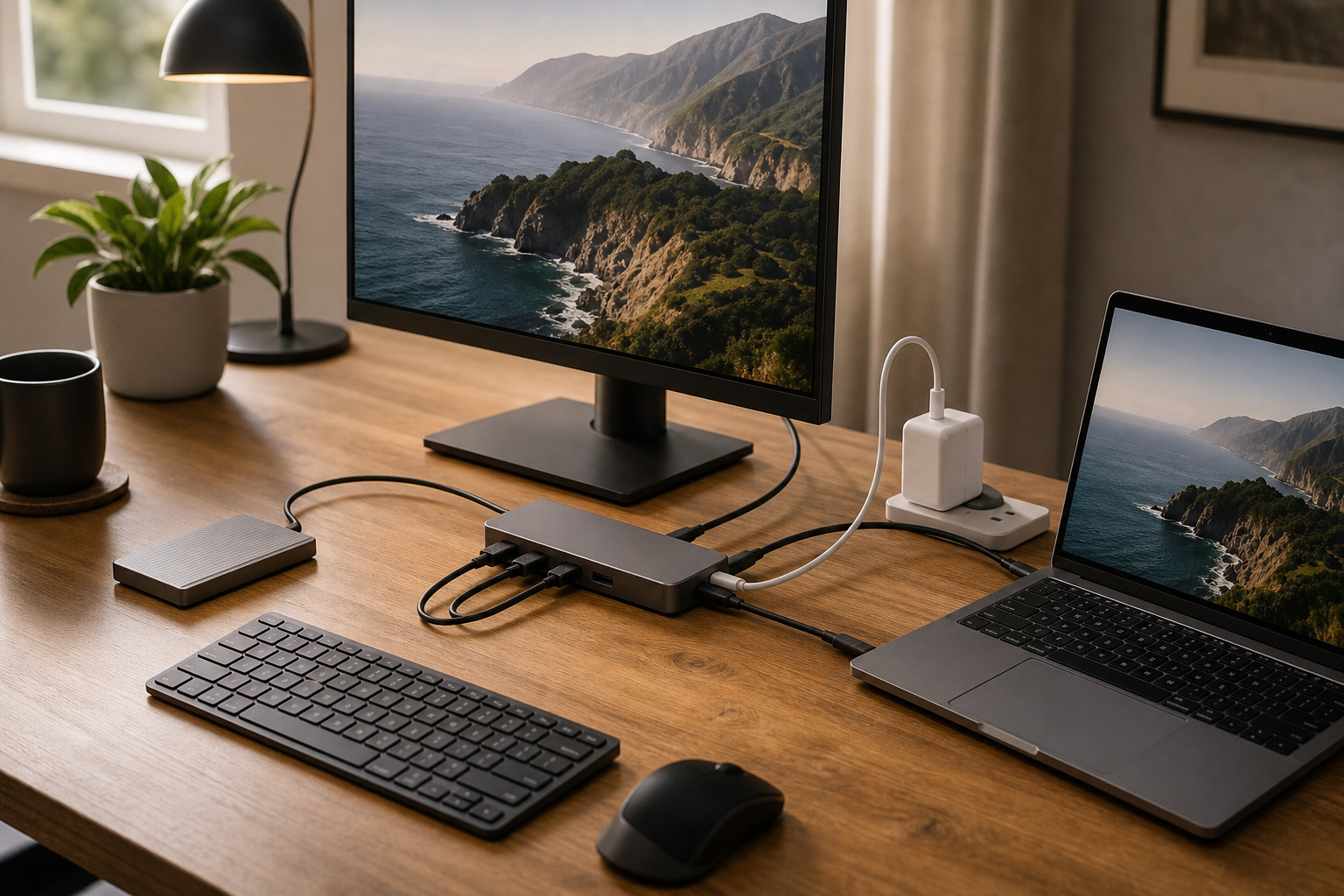
A good USB-C hub is easy to overlook until the workday starts feeling messy. One laptop port has to handle a monitor, keyboard, mouse receiver, external drive, webcam, card reader, Ethernet adapter, and charging cable. The right hub makes that setup feel calm instead of fragile.
This guide is written for office laptop users who want a tidy everyday connection point, not for people chasing extreme lab benchmarks. If you are comparing current picks, start with LeStallion’s product roundup: best USB-C hubs for office laptops. This page adds practical buying context so the shortlist is easier to match to your desk.
Start with the devices you connect every day
Before comparing brands, write down the devices that stay plugged in most often. A simple office hub usually needs HDMI or DisplayPort, two or three USB-A ports for older accessories, at least one USB-C data port, pass-through charging, and maybe Ethernet. Creators may need SD or microSD. Hybrid workers may care more about size and cable strength.
The biggest mistake is buying for a fantasy desk instead of the desk you actually use. If your laptop already has a headphone jack and card reader, those extras matter less. If your office Wi-Fi is unreliable, Ethernet may matter more than another USB-A socket.
Power delivery is the comfort feature
Pass-through charging lets one cable feed the laptop while the hub handles accessories. Check the wattage carefully. Many hubs advertise 100W input but reserve some power for themselves, so the laptop may receive less. That is usually fine for everyday productivity laptops, but larger workstation notebooks can drain under load if the hub cannot pass enough power.
Use a charger and cable rated for the job. A strong hub cannot fix an underpowered wall adapter. For shared offices, labeling the charger and hub can prevent mystery slow-charging problems later.
Monitor support needs plain reading
Monitor claims are often written in tiny spec language. Look for the exact resolution, refresh rate, and whether the hub supports one screen or multiple screens on your operating system. A 4K display at 30Hz may look fine for static spreadsheets but feel less smooth than 60Hz. Some laptops support display output over USB-C; some budget models do not.
If your meeting room or desk monitor uses HDMI, choose a hub with a stable HDMI port rather than stacking adapters. Fewer adapters usually means fewer points of failure during calls.
Heat, cable strain, and desk placement
Small hubs can become warm. Warm is not automatically dangerous, but a hub buried under papers or hanging from a laptop port is a poor setup. Place it flat on the desk where air can move and where cables do not tug sideways. A short built-in cable is neat for travel, while a slightly longer cable may be kinder to a permanent desk.
For a clean office setup, route heavy monitor and power cables toward the back of the desk. Keep thumb drives and card slots reachable from the front or side. This turns the hub into a useful dock-like station without needing a full docking station.
When to choose a dock instead
A USB-C hub is best for compact expansion. A docking station is better when you want a more permanent command center, more displays, stronger power delivery, and less cable swapping. If you unplug daily and carry the accessory in a bag, a hub wins. If the laptop lives at a desk most of the week, a dock may be worth the extra cost.
Quick buying checklist
- Match ports to real devices, not marketing photos.
- Confirm pass-through charging wattage for your laptop.
- Check monitor resolution and refresh rate.
- Prefer fewer adapter chains for meeting-room reliability.
- Choose a cable length that fits your desk, not just your bag.
- Leave airflow around compact hubs that run warm.
FAQ
Is a USB-C hub the same as a docking station?
No. Hubs are usually smaller and portable; docks are usually more powerful and permanent.
Do all USB-C ports support monitors?
No. The laptop port must support display output, and the hub must support the resolution you want.
Can a hub charge my laptop?
Only if it supports USB-C power delivery pass-through and is paired with a suitable charger and cable.